Quality Metrics & Evaluation
A key piece of Vedana is the built-in evaluation harness. Without it you can’t objectively tell whether your assistant is working, or whether a change improved anything.
What a golden dataset is
A golden dataset is a curated set of question/answer pairs representing the queries your system should answer correctly. It’s the ground truth against which retrieval quality is measured.
Each entry has:
- question — the question phrased the way a real user would phrase it;
- expected_answer — the correct expected answer.
A well-curated golden dataset:
- covers the main question types in your domain;
- includes structured questions (specific values, dates) and open-ended ones (explanations);
- uses real / realistic phrasings, not idealised ones;
- contains edge cases and questions that stress retrieval boundaries.
A golden dataset is not a test of general LLM capabilities. It’s a test of whether the graph is structured correctly, whether the right data was loaded, and whether the assistant picks the right tools.
Where the golden dataset lives
In the Grist Test Set doc (GRIST_TEST_SET_DOC_ID), tables:
Gds(Golden Dataset) — question/answer pairs;Tests— test run configurations (optional).
eval_gds structure (see vedana_etl.catalog):
| Column | What it stores |
|---|---|
gds_question | the question |
gds_answer | the reference answer |
question_scenario | scenario category (structured / document / FAQ / smalltalk / edge) |
question_comment | author note |
question_context | additional context for evaluation |
How to run an evaluation
1. Prepare the golden dataset in Grist
The golden dataset lives in the Golden Dataset Grist doc (GRIST_TEST_SET_DOC_ID; in the Quick Start setup that’s http://localhost:8484/o/docs/2FDgbBNtEDmg/Golden-Dataset). Add rows to the Gds table — one row per evaluation pair. The columns the eval pipeline reads are:
| Grist column | Meaning |
|---|---|
gds_question | the question, phrased the way a real user would phrase it |
gds_answer | the reference (expected) answer |
question_scenario | category (e.g. structured / document / faq / smalltalk / edge) — used for filtering in the UI |
question_context | optional extra context the judge can use when grading |
Reference answers should be short and factual. For structured questions, the exact value from the graph. For document questions, the key information a correct answer would contain.
LIMIT-dataset examples:
gds_question | gds_answer |
|---|---|
| Who likes Quokkas? | Geneva Durben |
| What are Geneva Durben’s interests? | Quokkas, Slide Rules, Mosaic, Eating Disorders, Tantric, Marrakesh |
| Who is interested in Joshua Trees? | Flo Zaugg, Nathen Saadia |
2. Sync the dataset into the backoffice
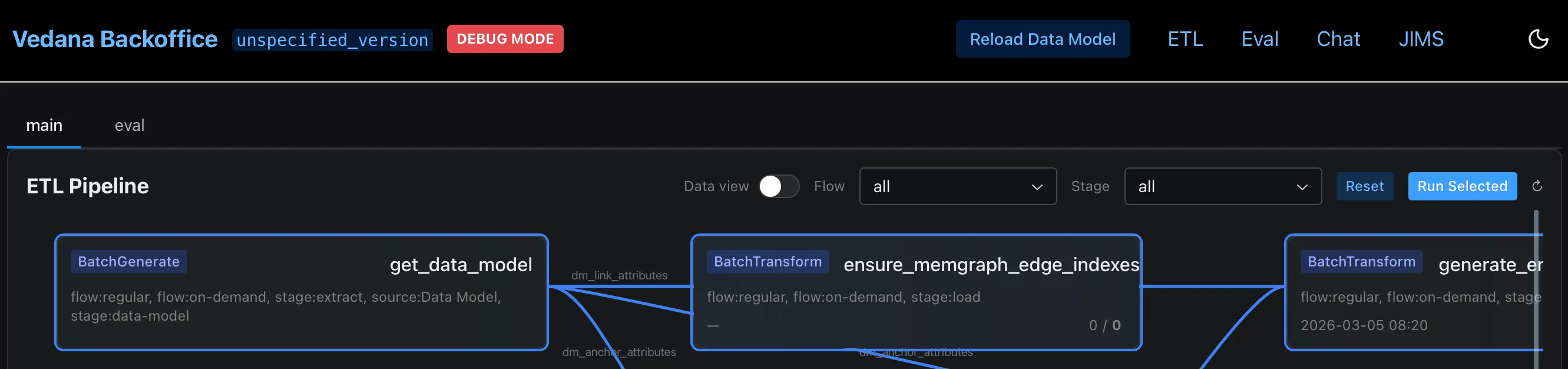
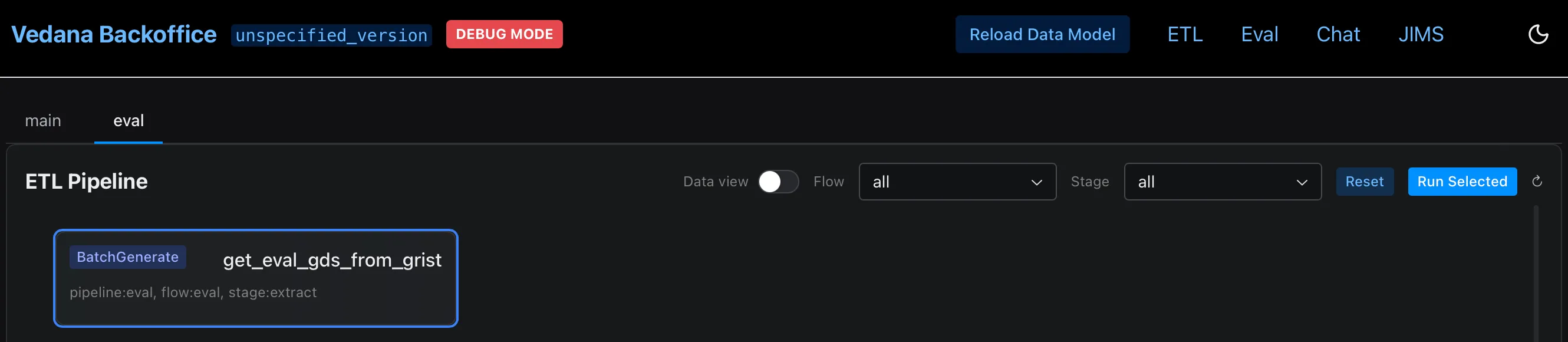
In the backoffice → Eval (http://localhost:9000/eval), click the small ↻ button next to the “Golden QA Dataset” header (tooltip: “Refresh golden dataset from Grist”). It runs the single get_eval_gds_from_grist ETL step and reloads the question list — synchronous and near-instant, nothing else from the main ETL is touched.
The same step can also be triggered from ETL → eval tab → Run Selected if you prefer to run it together with other ETL flows. Both paths invoke the same
get_eval_gds_from_griststep under the hood.
Make sure the main ETL (data model, data, embeddings) has already run for your domain — otherwise the assistant has nothing to answer with and every test will fail for the wrong reason.
3. Run evaluation
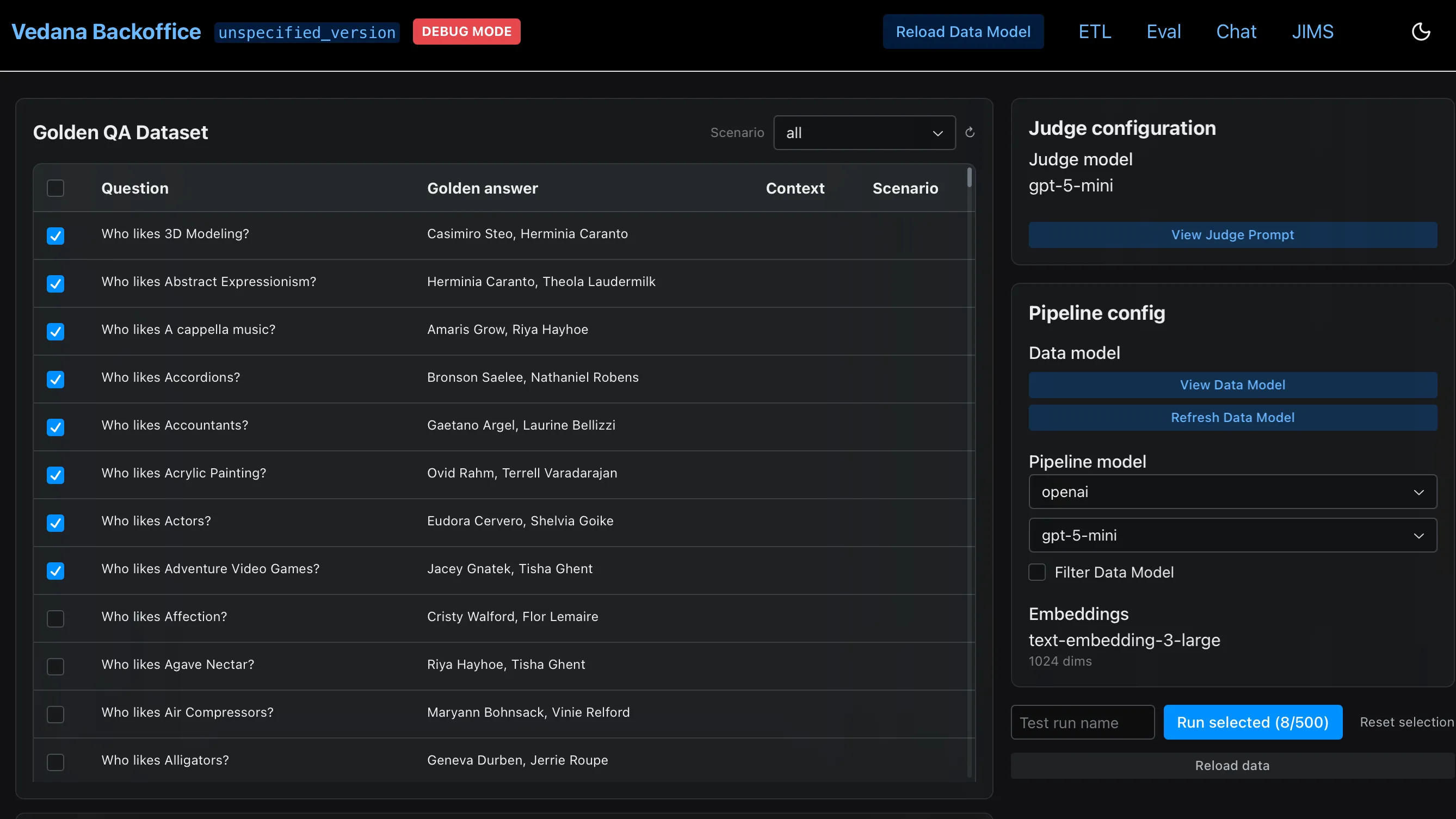
In the backoffice → Eval:
- In the Golden QA Dataset window, pick questions (a subset is fine; filter by
question_scenarioif you want one category only). - Check Judge configuration (judge model and prompt).
- Check Pipeline config (main pipeline model, filtering flag, top_n).
- Click Refresh Data Model — this is a separate action from the GDS refresh above; it reloads the data model description that the assistant sees, guaranteeing the latest model is used. Click it whenever you changed the data model in Grist.
- Click Run Selected.
The pipeline:
- iterates over each question in the golden dataset;
- sends it to the chat endpoint;
- compares the response to the expected one (via LLM-judge);
- computes retrieval metrics.
Metrics
Hit Rate (a.k.a. pass_rate)
The main metric — Hit Rate: the fraction of questions the system answered correctly, a value between 0 and 1. Internally the eval state in libs/vedana-backoffice/src/vedana_backoffice/states/eval.py exposes it as pass_rate = passed / total (alongside passed, failed, avg_rating, cost_total, judge_cost_total, avg_answer_time_sec, median_answer_time_sec). The two names are the same metric.
| Hit Rate | What it means |
|---|---|
| > 0.85 | A good production baseline |
| 0.7–0.85 | Workable MVP, but with systematic gaps — inspect the breakdown |
| 0.6–0.7 | Noticeable retrieval problems; data model and playbook need work |
| < 0.6 | Systemic problems; serious iteration needed before production |
Per-question breakdown
Beyond the aggregate, eval gives a per-question breakdown: which questions passed, which failed, what the system actually returned. Look for patterns:
| Pattern | Likely cause |
|---|---|
| Structural questions fail (names, dates, values) | Anchor / attribute not described, or ETL didn’t run |
| Document questions fail | Bad chunking, no embeddings, wrong playbook |
| Whole category of questions fails | Playbook routes the intent to the wrong tool |
| Inconsistent for similar questions | embed_threshold too low or too high |
| LLM-judge says “partially correct” | The answer is right but not in the expected format — fix the playbook |
What you should NOT tune
- answers tuned to the judge prompt. That’s the road to Goodhart’s law — the metric grows, real quality doesn’t.
- one category of questions at the cost of another. Raising structural Hit Rate while losing document Hit Rate isn’t a win.
Iteration loop
Eval is most useful as an iteration loop, not a one-off check.
- Find a failure pattern in the breakdown.
- Apply one change: data model, playbook, embed_threshold, chunking.
- Re-run ETL (if needed).
- Re-run eval.
- Compare Hit Rate before and after.
Each iteration is targeted. That’s how you tell which change worked.
Grow the golden dataset over time — especially with questions from real users. The more real phrasings, the more representative the metric.
LLM-as-judge
Vedana uses a separate model (JUDGE_MODEL, default gpt-4.1-mini) to evaluate match between the answer and the reference. The judge prompt is configured per eval run in Backoffice → Eval → Judge configuration (fields judge_model, judge_prompt_id, judge_prompt on JudgeMeta, see vedana-backoffice/states/eval.py); it is not part of the shared Prompts registry that vedana-core uses at runtime. If you don’t override it in the UI, the built-in judge default is used.
Important:
- the judge is stochastic too — don’t expect bit-by-bit identical metrics across consecutive runs;
- for high-stakes decisions, do 3–5 runs and look at the median;
- check the judge’s representativeness on 10–20 manually labelled examples.
A/B comparison of configs
You’ll often need to compare two configs (two playbook versions, two LLM models). The most reliable way:
- Freeze the golden dataset.
- Run eval on config A → record Hit Rate and breakdown.
- Switch config → re-run → record.
- Pair-compare: which questions improved, which regressed.
- Decide based on the business criticality of the changed questions.
Production monitoring as a continuation of eval
In production add:
- sampling of real conversations (10–20%) for manual review,
- a topical classifier of incoming questions: which intent, was it covered by the playbook,
- alerts on metric drops (e.g. the share of
rag.errorevents going up).
See Monitoring & Metrics.