Quick Start
In 10 minutes you’ll:
- Bring up the entire Vedana stack in Docker.
- Load the test data model and data.
- Run the ETL and confirm that the graph was built.
- Ask your first question.
- See exactly how the assistant arrived at the answer.
Prerequisites
- Docker and Docker Compose installed.
- An LLM provider API key: OpenAI, OpenRouter, or Google/VertexAI (any combination — see LLM configuration).
- ~5 GB of free disk space and these ports free:
3000(Memgraph Lab),5432(Postgres),7444(Memgraph monitoring HTTP),7687(Memgraph Bolt),8000and9000(Reflex backoffice / Caddy),8080(HTTP API),8090(Widget),8484(Grist).
Step 1. Clone the repository and prepare .env
git clone https://github.com/epoch8/vedana
cd vedana

cp apps/vedana/.env.example apps/vedana/.env
Open apps/vedana/.env and set the key for at least one provider. A minimal .env for the quick start looks like this:
# At least one of these — pick your provider
OPENAI_API_KEY="sk-..."
# OPENROUTER_API_KEY="sk-or-..."
# GOOGLE_APPLICATION_CREDENTIALS="path-to-creds.json"

# Models (defaults shown — change here if you want)
MODEL="gpt-4.1-mini"
EMBEDDINGS_MODEL="text-embedding-3-large"
EMBEDDINGS_DIM=1024

# Memgraph (already set in .env.example, just confirm)
MEMGRAPH_URI="bolt://memgraph:7687"
MEMGRAPH_USER="neo4j"
MEMGRAPH_PWD="modular-current-bonjour-senior-neptune-8618"

# Postgres (already set in .env.example, just confirm)
JIMS_DB_CONN_URI="postgresql://postgres:postgres@db:5432"
DB_CONN_URI="postgresql://postgres:postgres@db:5432"
Note on Grist credentials.
GRIST_API_KEY,GRIST_DATA_MODEL_DOC_ID,GRIST_DATA_DOC_ID, andGRIST_TEST_SET_DOC_IDare not set in.env.example— they’re hardcoded inapps/vedana/docker-compose.yml(underx-app-common.environment) and point to a public Grist demo instance with the LIMIT test dataset. That’s why the quick start works without you ever signing into Grist. When you switch to your own Grist (self-hosted onhttp://grist:8484or hosted atgetgrist.com), copy the fourGRIST_*lines from.env.exampleinto.envand fill them in with your own values — and remove the hardcoded ones fromdocker-compose.ymlso your.envwins.
The default models (gpt-4.1-mini, text-embedding-3-large) can be changed in .env — see the Configuration guide and the Configuration Reference.
Picking
MODEL.gpt-4.1-miniis a good default for the Quick Start and for simple assistants: it’s cheap, fast, and works well on a small data model like the LIMIT test dataset. For domains with larger data models, longer Cypher reasoning, or more nuanced answers, consider upgradingMODELto the largergpt-4.1.FILTER_MODEL(the data-model filtering step) can usually stay ongpt-4.1-minieven when the mainMODELis upgraded.
Step 2. Bring up the stack
docker compose -f apps/vedana/docker-compose.yml up --build -dCompose starts these services (Telegram bot is commented out in the default compose — uncomment the tg: block if you need it):
| Service | Purpose | Port(s) |
|---|---|---|
app | Reflex backoffice + chat + ETL runner (via Caddy) | 9000, 8000 |
api | FastAPI HTTP API (jims-api) | 8080 |
widget | Embeddable web widget (jims-widget) | 8090 |
db | PostgreSQL 15 with the pgvector extension | 5432 |
memgraph | Memgraph (graph DB, Bolt + monitoring HTTP) | 7687, 7444 |
memgraph-lab | Web inspector for Memgraph | 3000 |
grist | Grist (default source of the data model and data) | 8484 |
What is port 7444? It’s Memgraph’s built-in HTTP monitoring endpoint (live snapshots, metrics, replication state). It’s exposed because Memgraph Lab uses it to show server stats. You can ignore it — but keep the port free.
The db-migrate container automatically applies Alembic migrations before the main app starts.
Step 3. Verify everything is alive
First, smoke-test the API and Grist via curl before opening anything in a browser:
# HTTP API — should return 200 with `{"detail":"Not Found"}` body or similar (root has no handler, but the server responds)
curl -s -o /dev/null -w "api: %{http_code}\n" http://localhost:8080/docs

# Grist — its own health endpoint
curl -s -o /dev/null -w "grist: %{http_code}\n" http://localhost:8484/api/status

# Memgraph monitoring — returns server info
curl -s -o /dev/null -w "memgraph: %{http_code}\n" http://localhost:7444/

# Backoffice (Caddy)
curl -s -o /dev/null -w "backoffice: %{http_code}\n" http://localhost:9000/
All four should print a 2xx or 3xx status code. If any of them fails, run docker compose -f apps/vedana/docker-compose.yml logs <service> to see what went wrong.
Then open in your browser:
- Backoffice → http://localhost:9000
- HTTP API (Swagger) → http://localhost:8080/docs
- Memgraph Lab → http://localhost:3000
- Grist → http://localhost:8484
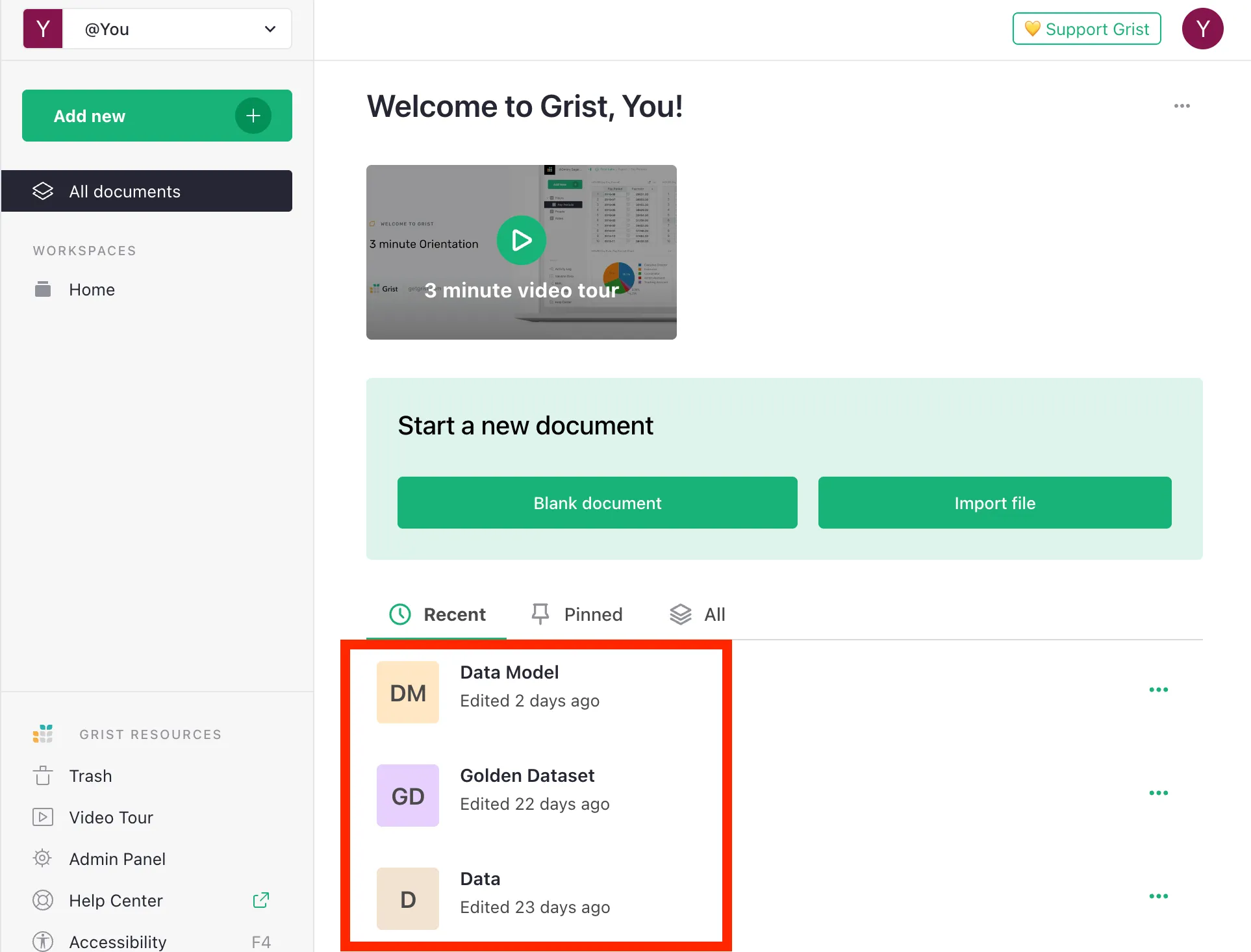
The local Grist container ships with three seeded documents — Data Model, Data, and Golden Dataset (the LIMIT test dataset — see Test Dataset). They are served from apps/vedana/infra/grist/docs/ and live entirely on your machine — Quick Start does not contact api.getgrist.com. The IDs used by ETL (GRIST_DATA_MODEL_DOC_ID, GRIST_DATA_DOC_ID, GRIST_TEST_SET_DOC_ID in .env.example) point at these local docs:
- Data Model — http://localhost:8484/o/docs/j6PTmqgw4caB/Data-Model
- Data — http://localhost:8484/o/docs/eB5kH8Z7NVEr/Data
- Golden Dataset — http://localhost:8484/o/docs/2FDgbBNtEDmg/Golden-Dataset
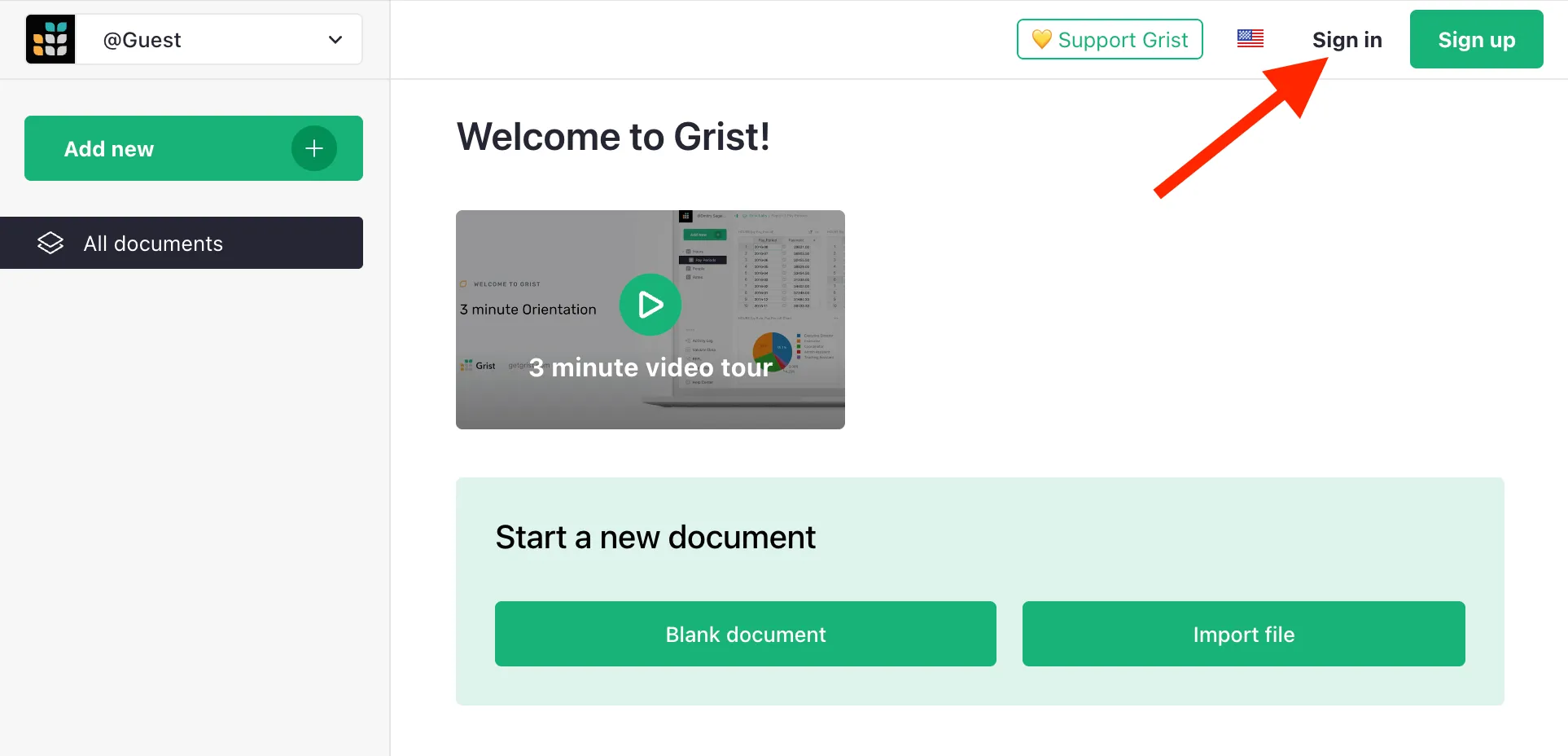
Sign in to Grist and confirm the documents are visible:
Step 4. Run the ETL
Without ETL the graph is empty and the assistant has nothing to find.
- Open the backoffice → ETL section → http://localhost:9000/etl.
- Click Run Selected on the main tab.

ETL does three things: it loads the data model, loads the data, and builds the graph in Memgraph + the embeddings in pgvector. Wait until every step turns green.
Step 5. Ask your first question
-
Open the chat → http://localhost:9000/chat.
-
Ask something about the test dataset (the canonical interest names in LIMIT use capitalised plurals —
Quokkas,Tapirs,Joshua Trees):- “Who likes Quokkas?”
- “What are Geneva Durben’s interests?”
- “Who is into Tapirs, and what else are they interested in?”
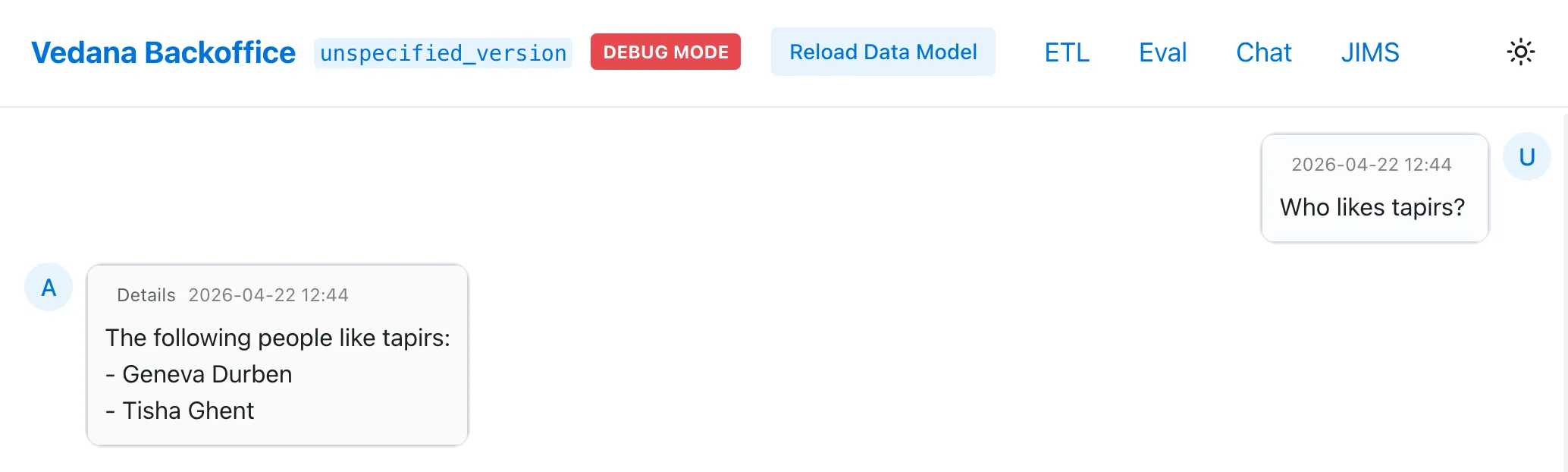
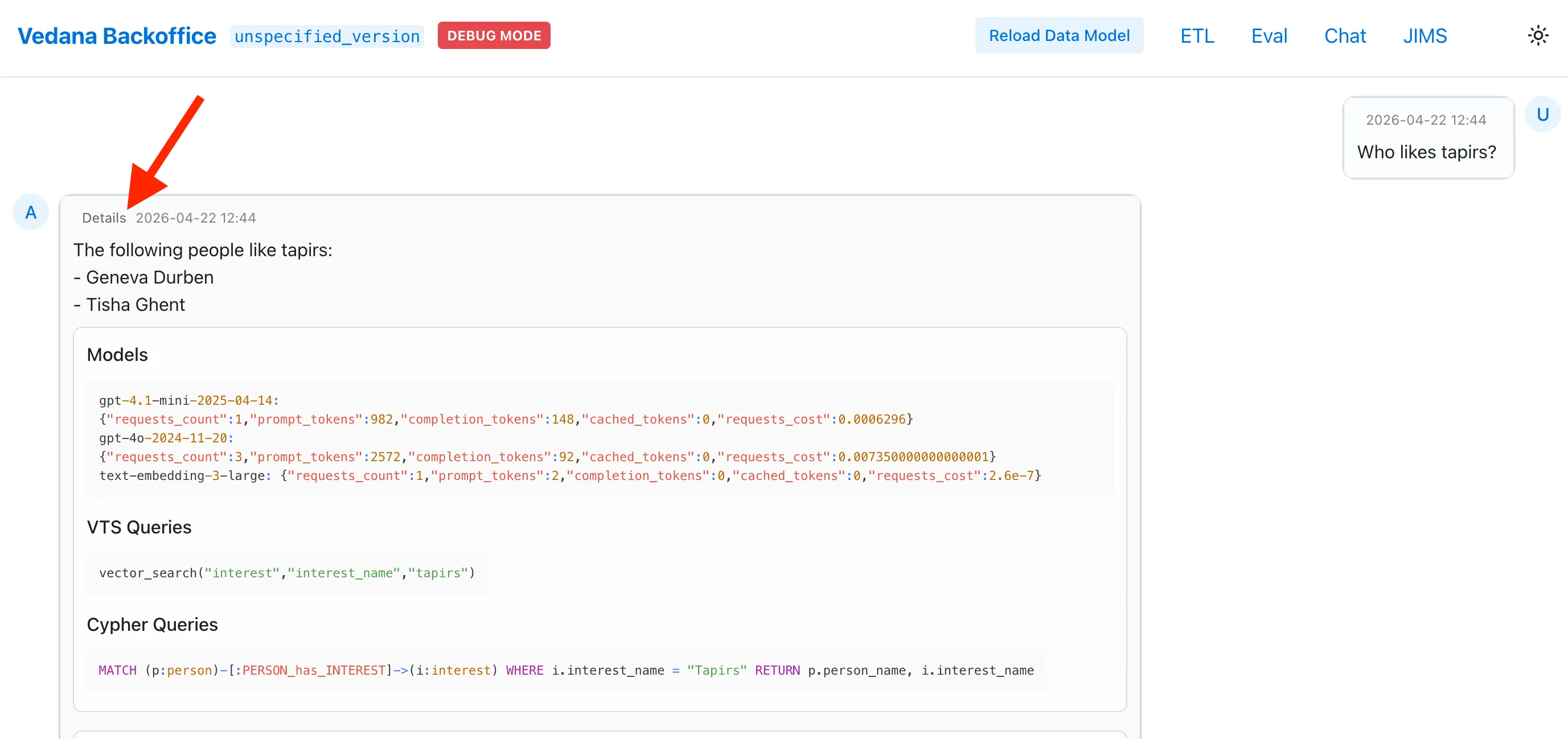
- Click Details under the answer to see:
- which Cypher queries the assistant ran;
- which vector searches were issued;
- how data model filtering shrank the context.
Step 6. Stop the stack
# soft stop
docker compose -f apps/vedana/docker-compose.yml down

# stop and remove volumes (full reset)
docker compose -f apps/vedana/docker-compose.yml down -v
What’s next
- Architecture — how the code is structured.
- Data Model Overview — how to describe your own domain.
- HTTP API — embed the assistant in your own system.
- Common mistakes — typical pitfalls during the first launch.