Setting Up Your Data Model
A step-by-step guide to creating a data model for your domain. The goal: at the end you have a Vedana that’s ready to query and answers your domain’s typical questions correctly.
Step 0. Prerequisites
- Run Vedana locally per the Quick Start.
- Open Grist on
http://localhost:8484. You should see three documents: Data, Data Model, Golden Dataset. - Make a copy of the Data Model doc for your project (or create a new one and switch
GRIST_DATA_MODEL_DOC_ID).
Step 1. Collect 20–30 typical questions
The most common mistake is to describe the model first and think about the questions later. Do the opposite.
Write down (in any format — even directly in a Grist table):
- Specific values: “What is the price of product X?”, “When does branch Y open?”
- Lists: “Show me all products of category Z under 1000”
- Relationships: “Who is connected to project A?”, “Which documents regulate B?”
- Explanations: “What does the policy say about X?”
- Smalltalk and edge cases: “Hello”, “What can you do?”, “How much does an electron weigh?”
This will be the basis for your golden dataset (see Evaluation).
Step 2. Identify entities (anchors)
For each question, decide what it’s about. The nouns in the question usually hint at anchors.
“How much is product X?” → anchor product.
“When does branch Y open?” → anchor branch.
“Which documents regulate category B?” → anchors legal_document, category.
Merge similar concepts into one entity. Don’t multiply duplicates.
Fill in the Anchors table:
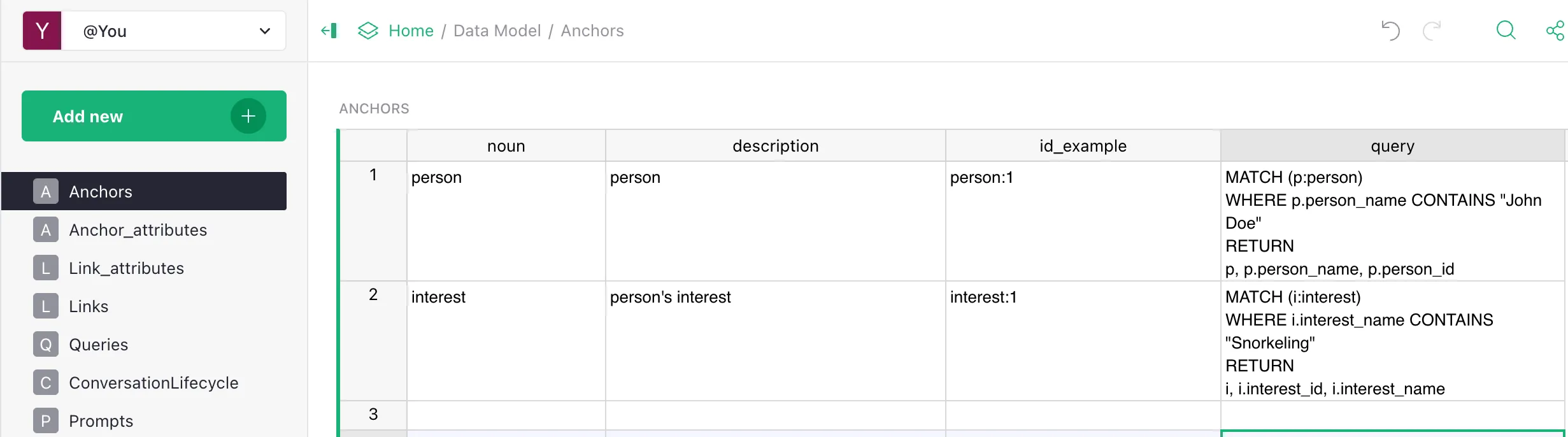
| noun | description | id_example | query |
|---|---|---|---|
product | A product in the Acme catalog. Use for questions about prices, availability, or features of specific products. | product_id: "p-001" | MATCH (p:product) WHERE p.product_id = $id RETURN p |
branch | A physical Acme branch/store. Use for questions about address, opening hours, contacts. | branch_id: "b-vno-01" | MATCH (b:branch) WHERE b.branch_id = $id RETURN b |
category | A catalog category. Groups products by type. | category_id: "cat-laptops" | MATCH (c:category) WHERE c.category_id = $id RETURN c |
Step 3. Describe attributes
For each anchor, write down every column of data that may be needed. Split into:
- scalar fields (numbers, strings, dates, flags) → attributes;
- references to other anchors → links (see step 4).
Fill in the Anchor_attributes table:
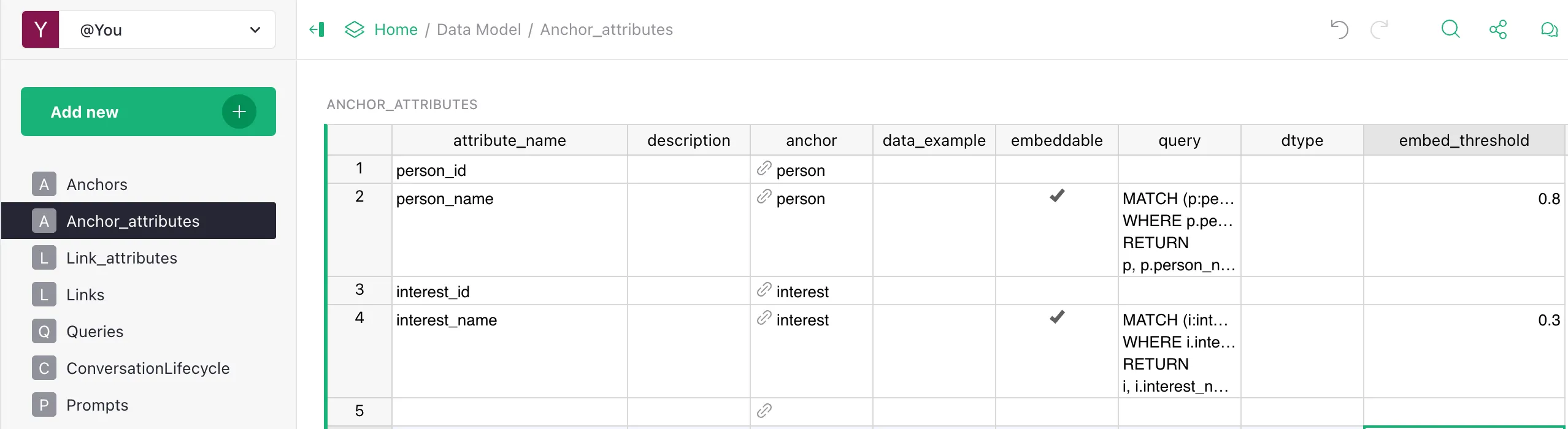
| anchor | attribute_name | description | data_example | dtype | embeddable | embed_threshold | query |
|---|---|---|---|---|---|---|---|
| product | name | Product name | ”MacBook Air” | str | true | 0.7 | MATCH (p:product {product_id: $id}) RETURN p.name |
| product | price | Price in EUR | 999.0 | float | false | — | MATCH (p:product {product_id: $id}) RETURN p.price |
| product | in_stock | Whether it’s in stock | true | bool | false | — | MATCH (p:product {product_id: $id}) RETURN p.in_stock |
| branch | address | Full address | ”Vilnius, …“ | str | true | 0.7 | MATCH (b:branch {branch_id: $id}) RETURN b.address |
| branch | opening_hours | Hours in JSON | ”{Mon: 09-18}“ | str | false | — | MATCH (b:branch {branch_id: $id}) RETURN b.opening_hours |
Rules:
embeddable=trueonly for text fields searched by meaning (names, descriptions).queryis required — otherwise the assistant can’t reliably fetch the value.dtypematches the actual format in Grist.
Step 4. Describe relationships (links)
Find foreign keys and real relationships:
“product belongs to category”, “product is sold at branch”, “document regulates category”.
Fill in the Links table:
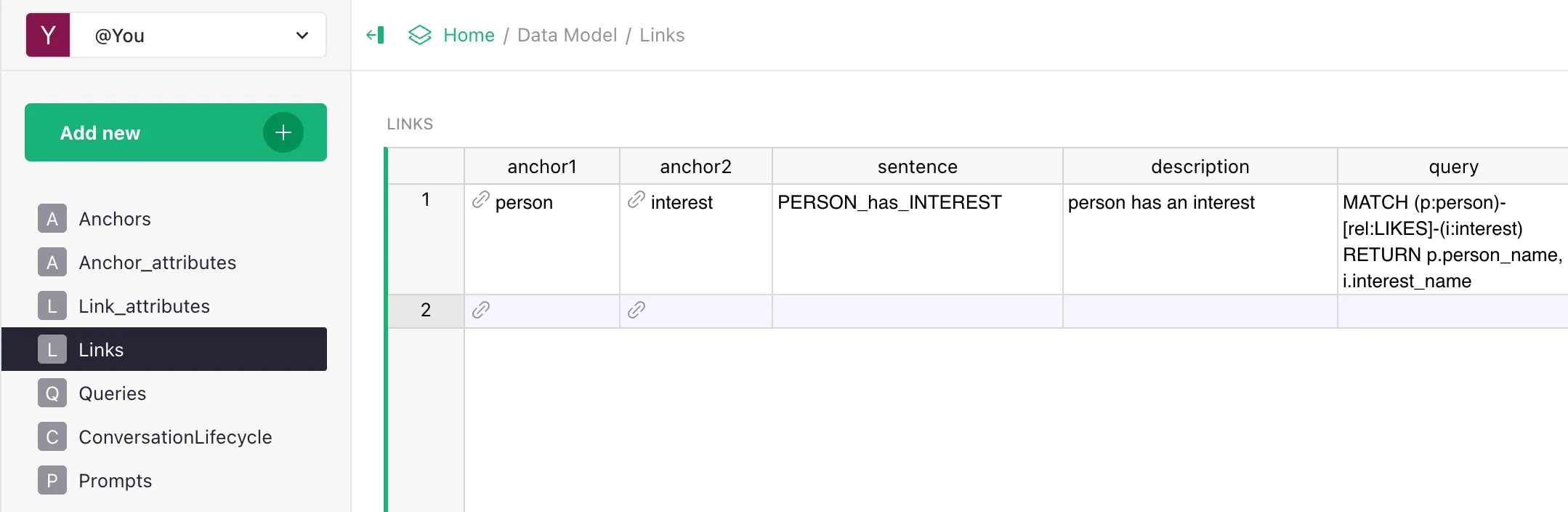
| anchor1 | anchor2 | sentence | description | query | anchor1_link_column_name | has_direction |
|---|---|---|---|---|---|---|
| product | category | PRODUCT_belongs_to_CATEGORY | Product belongs to category. | MATCH (p:product)-[:PRODUCT_belongs_to_CATEGORY]->(c:category) WHERE p.product_id=$id RETURN c | category_id | true |
| product | branch | PRODUCT_available_at_BRANCH | Product is available at a branch. | MATCH (p:product)-[:PRODUCT_available_at_BRANCH]->(b:branch) WHERE p.product_id=$id RETURN b | true | |
| document | category | DOCUMENT_regulates_CATEGORY | Document regulates a category. | MATCH (d:document)-[:DOCUMENT_regulates_CATEGORY]->(c:category) WHERE c.category_id=$id RETURN d | true |
Step 5. Write the playbook (Queries)
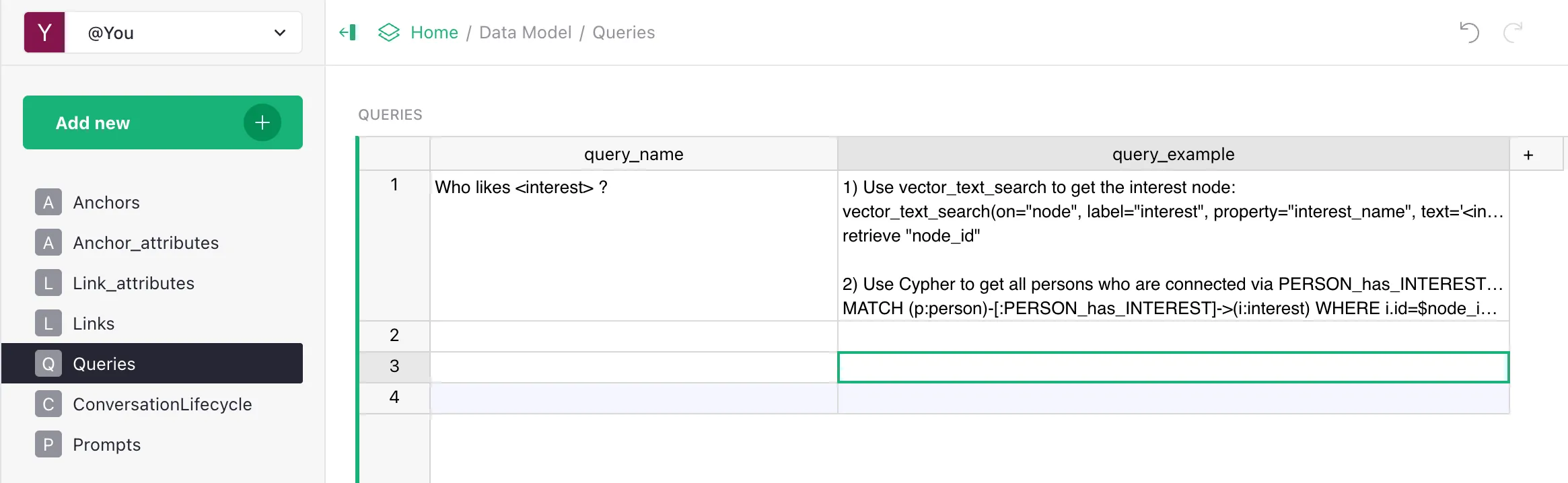
For each class of questions from step 1, describe a step-by-step scenario in the Queries table.
| query_name | query_example |
|---|---|
| Products of category X cheaper than Y | 1) MATCH (c:category) WHERE c.name="<X>" RETURN c.id2) MATCH (p:product)-[:PRODUCT_belongs_to_CATEGORY]->(c:category) WHERE c.id=$cat_id AND p.price < <Y> RETURN p.name, p.price ORDER BY p.price |
| Branch opening hours | 1) vector_text_search(label="branch", property="address", text="<Y>") → branch_id2) MATCH (b:branch) WHERE b.id=$branch_id RETURN b.opening_hours |
| Smalltalk | If the question is a greeting/thanks/farewell: do NOT call tools, reply briefly in a friendly tone. |
See Queries for details.
Step 6. Tune the system prompt
In the Prompts table add a row with name=generate_answer_with_tools_tmplt and a body adapted to your domain (tone, address forms, answer format). The default works, but customisation gives a noticeable quality boost.
See Prompts and Customizing Prompts.
Step 7. Run the ETL
In the backoffice → ETL → Run Selected. Wait for green.
Step 8. Verify on the golden dataset
- Put the questions from step 1 into the Test Set Grist doc as a golden dataset.
- In the backoffice → Eval → Run Selected.
- Get a Hit Rate.
- Analyse the failures:
| Pattern | Likely cause |
|---|---|
| Structural questions failing | Attribute / link not described, or ETL didn’t run. |
| Document questions failing | Bad chunking, no embeddings, wrong playbook. |
| A whole category fails | The playbook routes the intent to the wrong tool. |
| Inconsistent on similar questions | embed_threshold too low or too high. |
- Apply one change → re-run ETL → re-run eval. Compare metrics.
Iterate. One change per iteration. That’s how you learn the effect.
Step 9. Extend
Once the basic domain works (Hit Rate > 0.8), extend:
- add new anchors for additional scenarios;
- add FAQ entries for canonical questions;
- load documents for explanatory content;
- expand the playbook for edge cases.
Each time — iterate: edit → ETL → eval → analyse.
What’s next
- Adding Anchors, Adding Attributes, Adding Links — details for each.
- Tuning Embeddings — how to choose thresholds.
- Customizing Prompts — fine-tuning behaviour.